Tags allow you to create a label in Books that can then be applied to a deal and used to assist with sorting information on reports.
For help creating auto tags, check out this article!
To create a tag in Books, click on the three lines at the top left-hand corner of the screen.
Next, click on Settings, Company and then Tags.
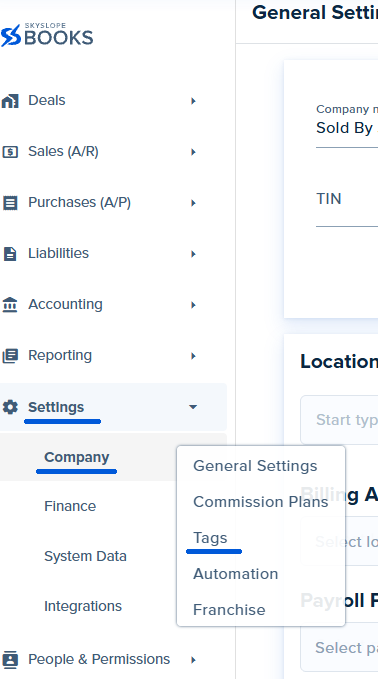
Select Create Category.

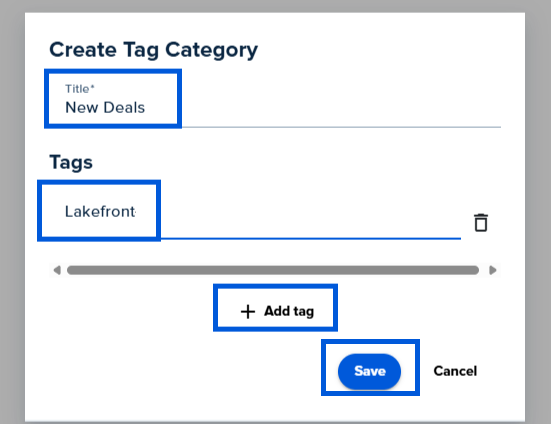
In the Create Tag Category pop up window, you will be able to customize the name of the category and on the line below, customize the name of the tag.
You can add multiple tags to a category by clicking on + Add tag button toward the bottom of the window.
To save the category and tags that you created, click the blue Save button on the bottom of the window.
To add a tag to a deal:
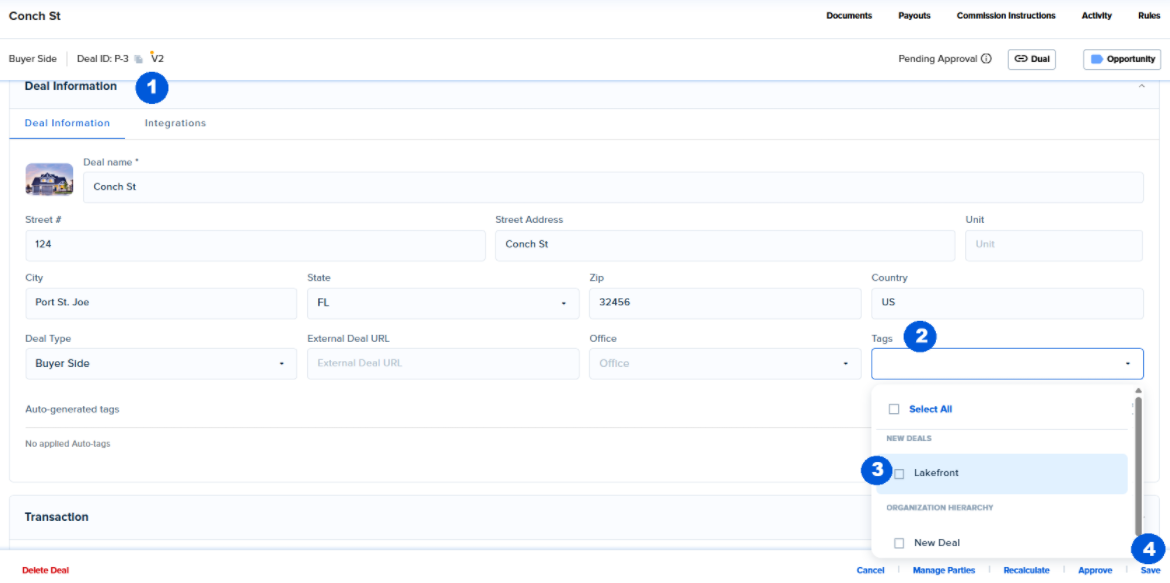
Navigate to the deal you would like to add the tag to and click on Deal Information.
Click on the Tag dropdown on the right hand side of the screen.
Check the box next to the tag you would like to apply to the deal.
Click Save at the bottom right hand corner of the screen.
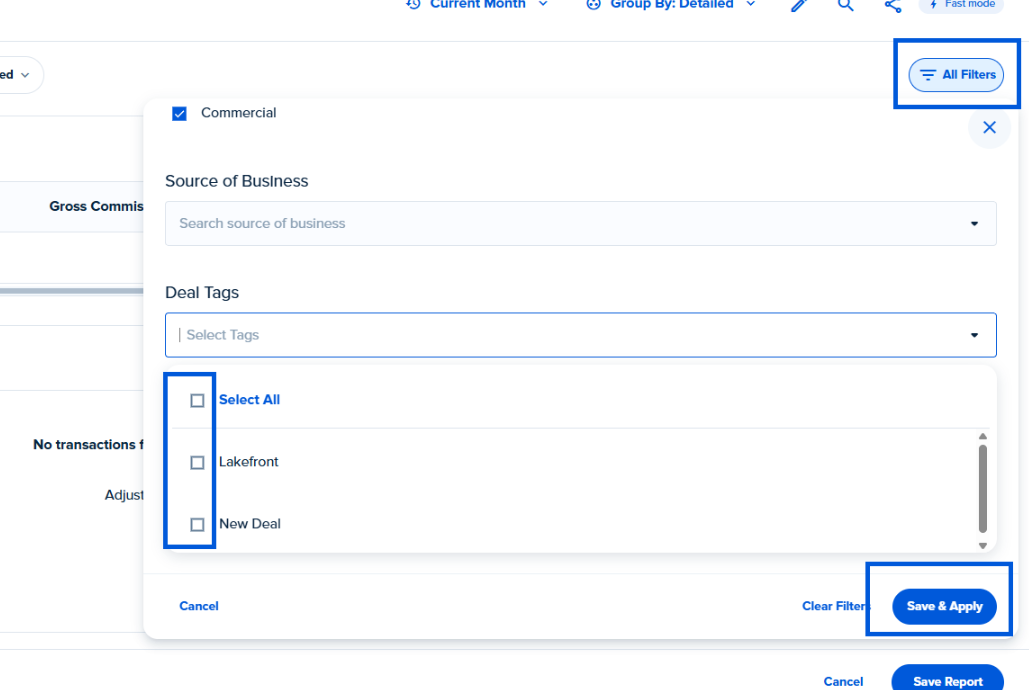
To sort by a tag in a report, click on All Filters at the top right hand corner of the screen, scroll down and select Show More, and click on the Deal Tags dropdown.
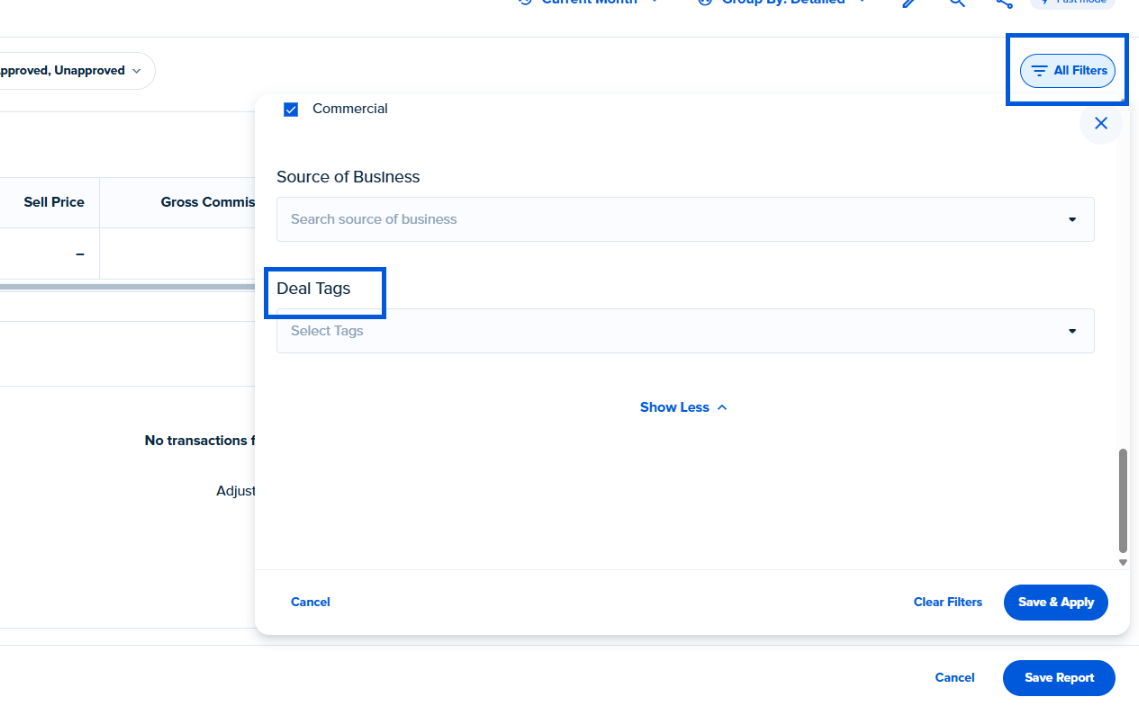
Check the box to the right of the tags you would like to filter by and then click on Save and Apply.
Was this article helpful?
That’s Great!
Thank you for your feedback
Sorry! We couldn't be helpful
Thank you for your feedback
Feedback sent
We appreciate your effort and will try to fix the article
<\br>