The Contact Earnings Report gives brokerages an easy way to review an individual agent’s payment history and earnings. Instead of manually piecing together information from multiple reports, you can run one report that brings together payments, vendor credits, expenses, earnings, fees, and 1099 amounts all in one place.
The report is based on when the agent was paid, making it easier to reconcile earnings with payment activity.
To access the Contact Earning Report, click on the three lines at the top left-hand corner of the screen.
Next click on Reporting and then Reports:
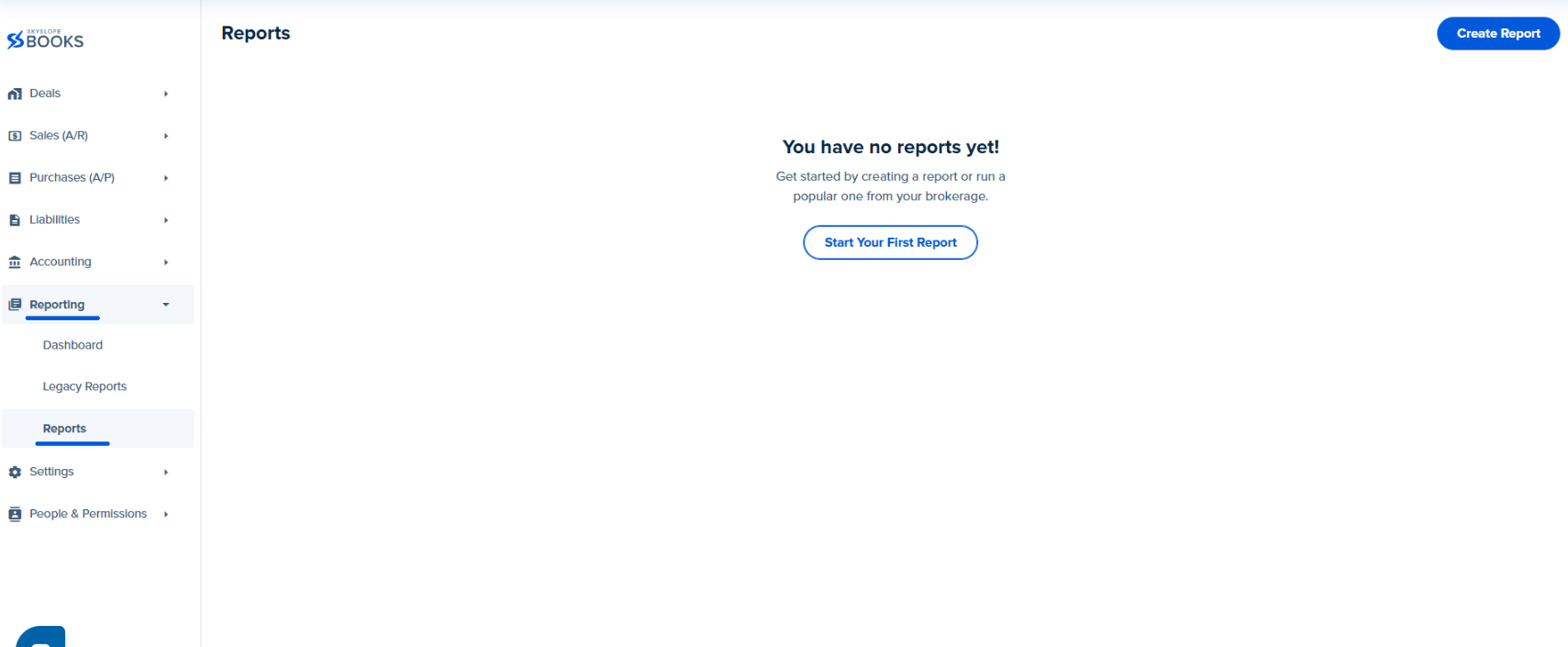
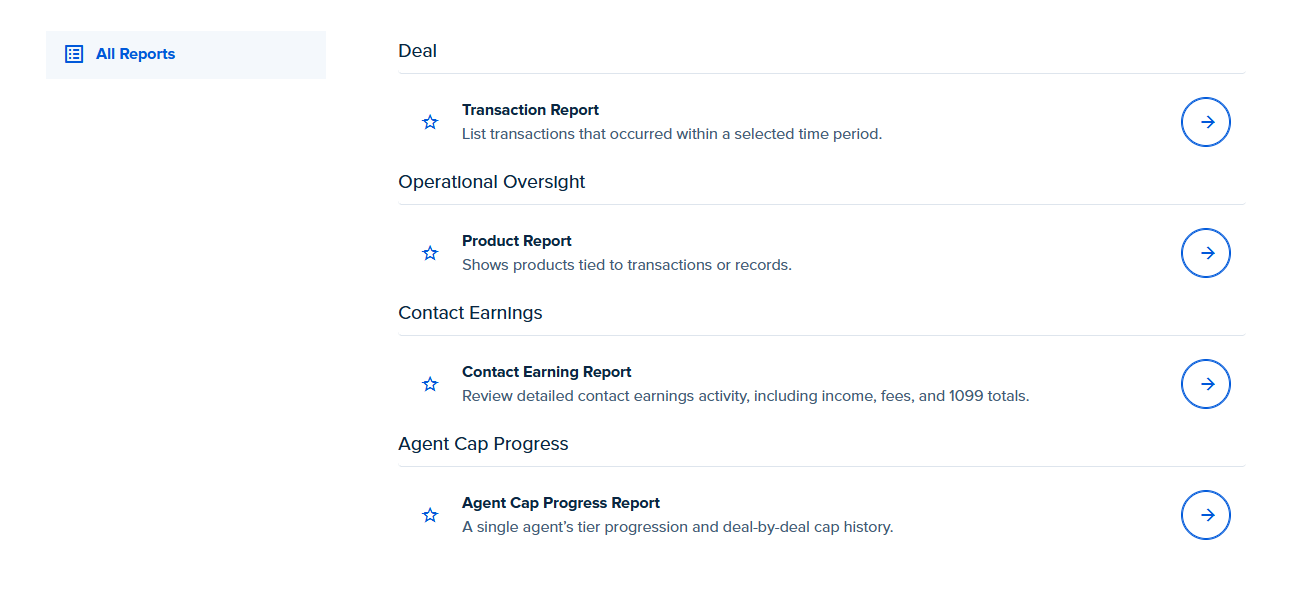
Select Create Report, then select Contact Earning Report:
- After clicking Run, this is where you can customize your report.
To select an agent, click on the Agent dropdown on the top left corner of the screen. You can either search for the agent’s name or scroll through the list and select the appropriate agent: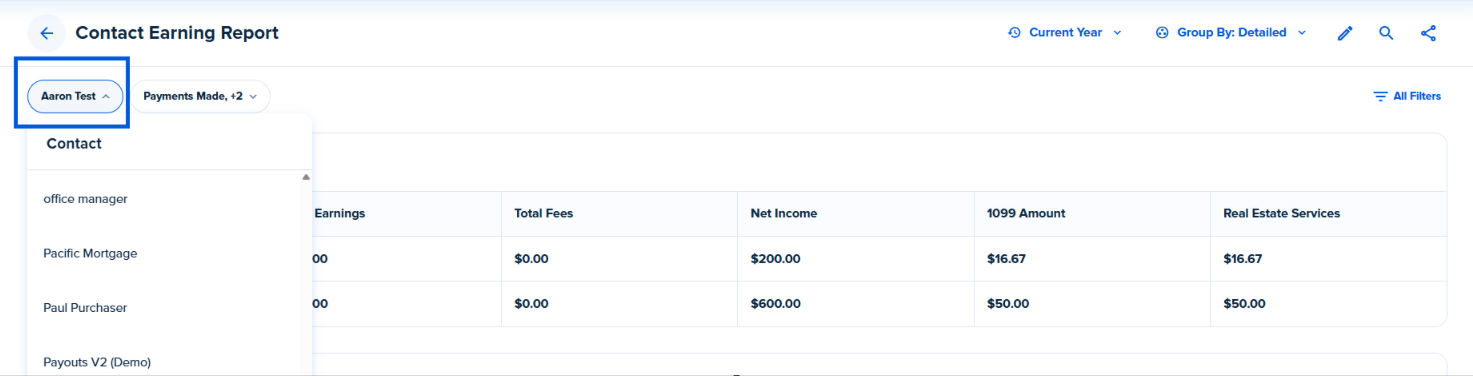
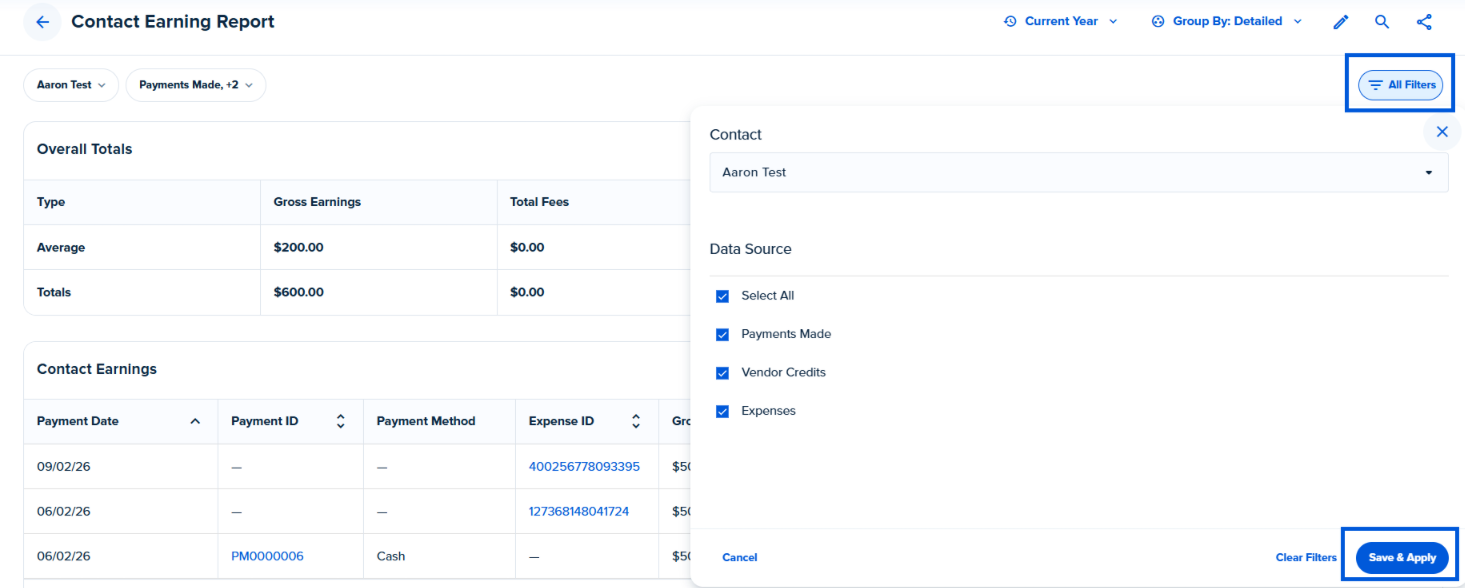
Open the Data Source dropdown and select the boxes for the data you would like to include on the report: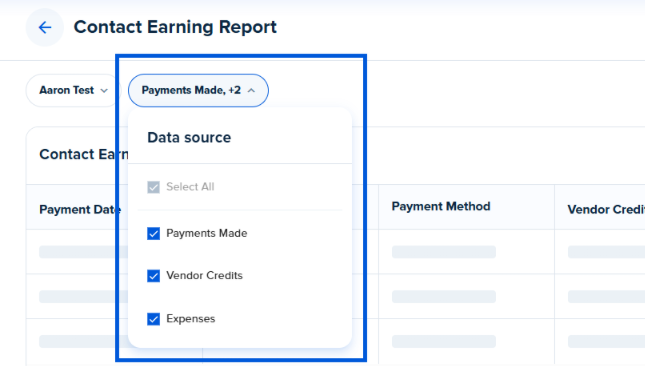
There are three sources of data to choose from:
Payments Made - Payments processed at remaining on deals and routed through the brokerage. This option may include payments outside of deals too.
Vendor Credits - Payments processed at closing on deals and/or credits provided by the brokerage.
Expenses - Bonuses and/or other similar payments made outside of deals.
All three options are selected by default. You can check or uncheck the box to add or remove the information from the report, at least one option must be selected.
You can also select the agent and data source by clicking the All Filters on the right-hand side of the page. Once you have customized the information you would like on the report, click Save and Apply:
Above the All Filters option, there is the Report Period and here you can select the time frame for the report.
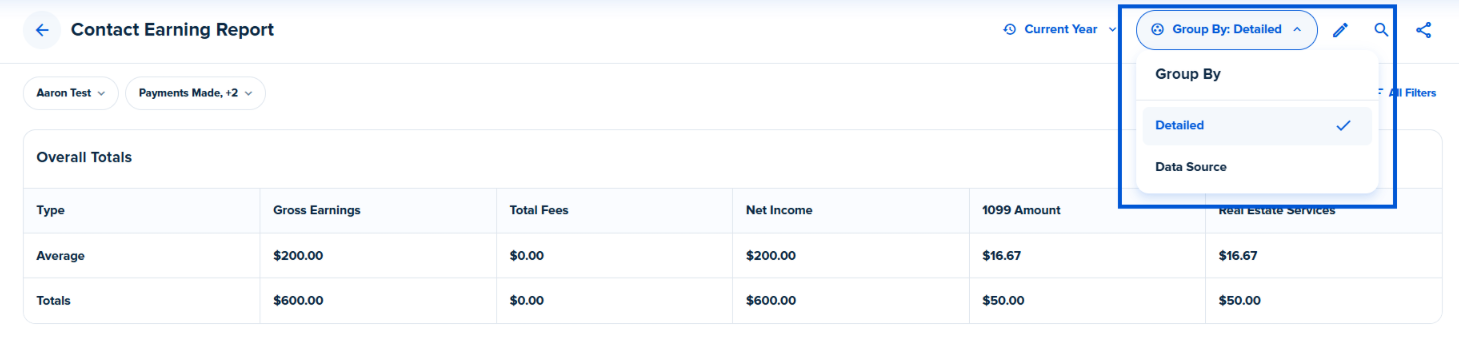
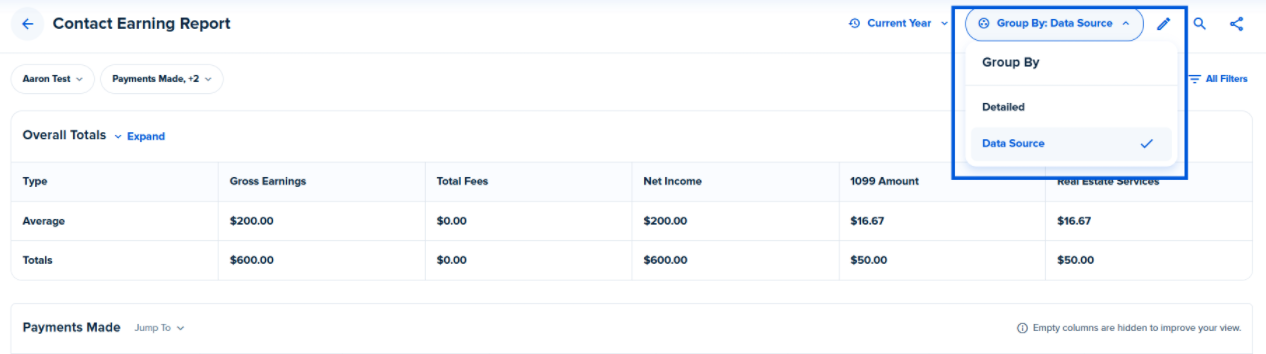
The Contact Earnings Report also offers two Group By options:
Detailed is the default option and displays overall totals, one combined earnings table and records from every selected data source. This option will provide a complete view of the agents earning activity in one table:
Data Source is another option used to separate the report into individual sections for Payments Made, Vendor Credits and Expenses. When this option is used, only the selected data sources will appear on the report:
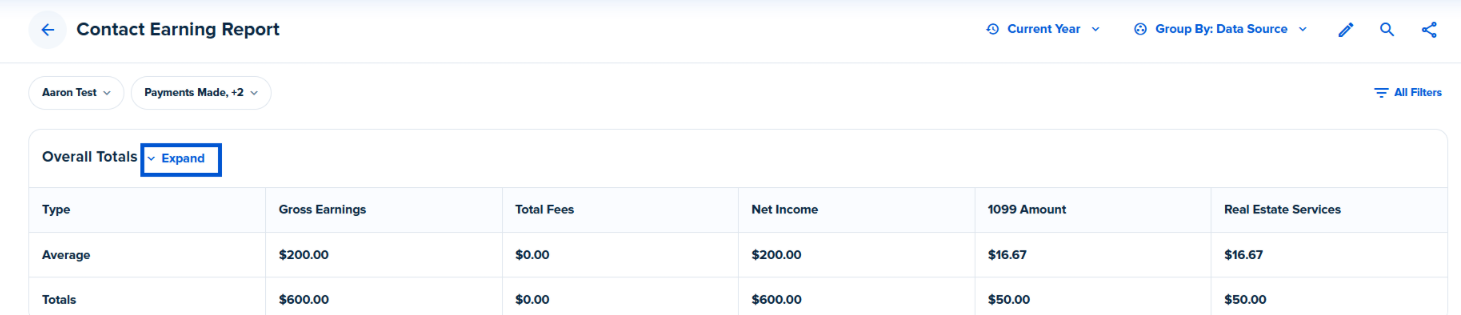
The Overall Totals summary appears above the detailed results and includes the averages, totals and counts. The totals will reflect the filters and data sources that you used to customize the report so the summary updates as you adjust the information you would like to see.
Overall Totals is collapsed by default but can be expanded to see averages and totals by data source if the Data Source - Group By option is selected:
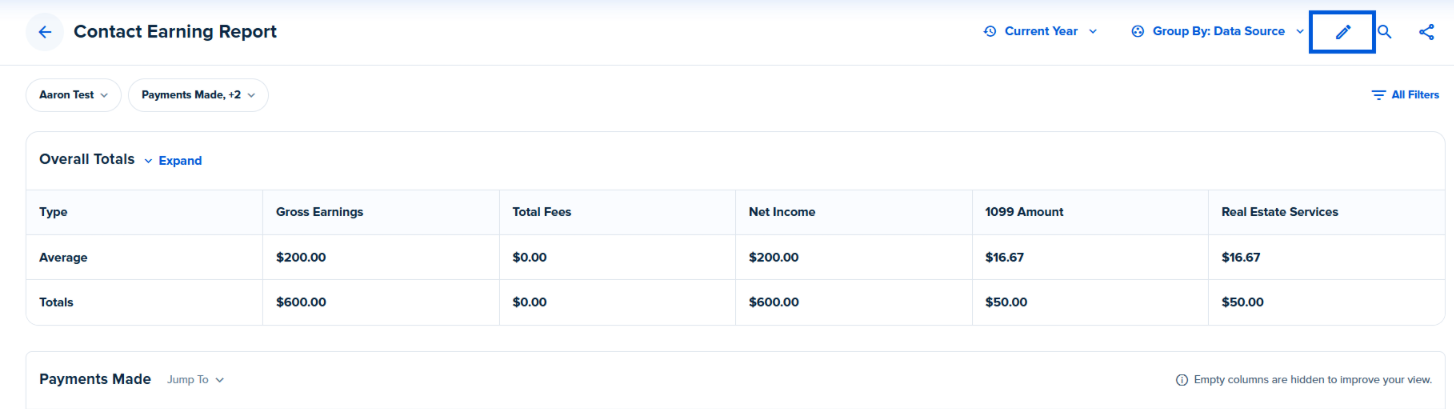
The final customization option allows you to choose which columns will appear on the report. To customize the columns, click on the pencil icon on the right-hand side of the screen:
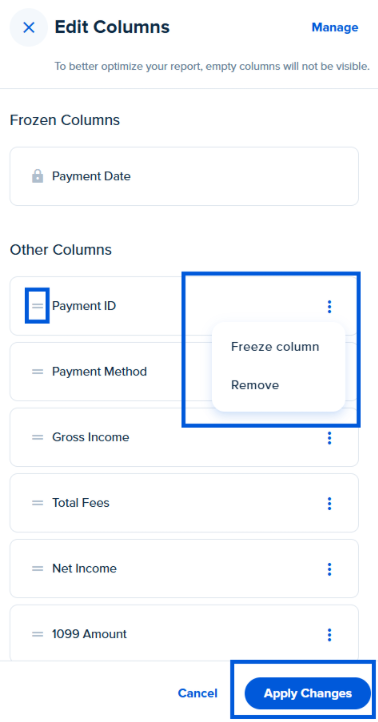
Once you are in the Edit Columns module, you can click and drag the cells vertically to change their order. You can also click the three dots to the right of each cell to freeze the position of the cell or remove it from the report.
You can click on Manage in the top right-hand corner to add/remove different fields within the report through the checkbox selection. After any changes, click Done to save them and return to the Edit Columns sidebar.
Once the columns are selected and in the order you would like, click Apply Changes at the bottom of the dropdown menu.
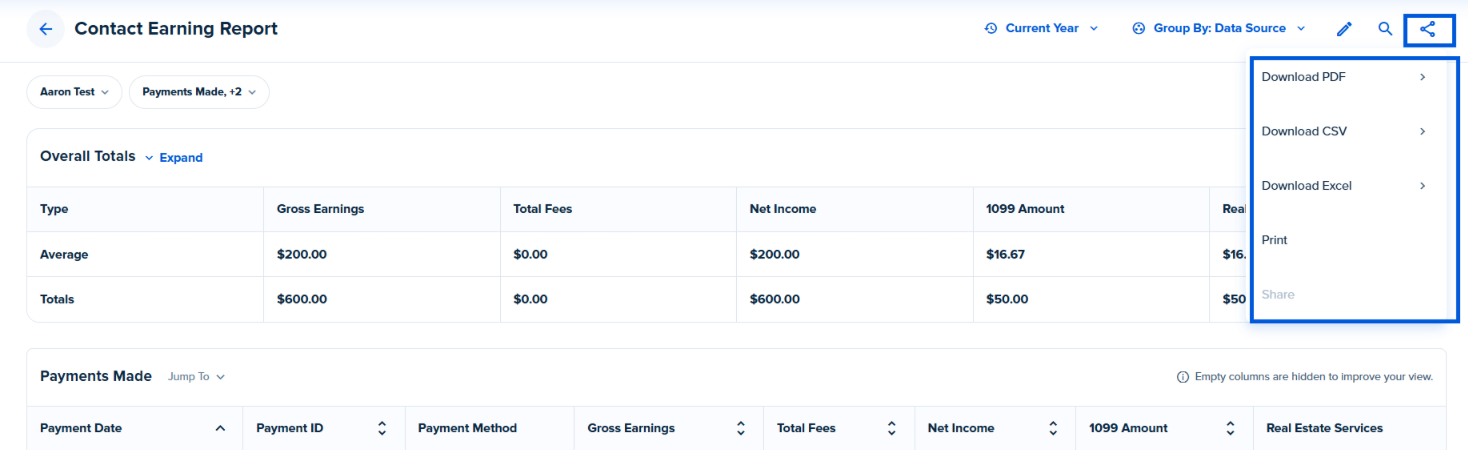
To share the report, click the toggle on the top right-hand side of the page. You will then have access to download, print and share the report:
5. Once you have completed all customizations, click on Save Report on the bottom right-hand side of the screen.
You will then be able to give the report a custom name. Once saved, you will have access to run the report in the future with the same customizations, making it easy to access the information you need.
Was this article helpful?
That’s Great!
Thank you for your feedback
Sorry! We couldn't be helpful
Thank you for your feedback
Feedback sent
We appreciate your effort and will try to fix the article
<\br>