Disbursement instructions can be seen on the Disbursement PDF on the Edit Deal page. They define how the money from a deal is to be paid. Essentially, they are notes to explain any additional instructions.
You can add disbursement instructions through the following methods in Zipi:
- Contact Card
- Deals Page
- Rules Page
Contact Card
Payment Methods
1. In the left menu, navigate to the Contacts section.
2. Locate and click on the contact. Then click the Pencil icon to edit. Then navigate to the Payroll tab.
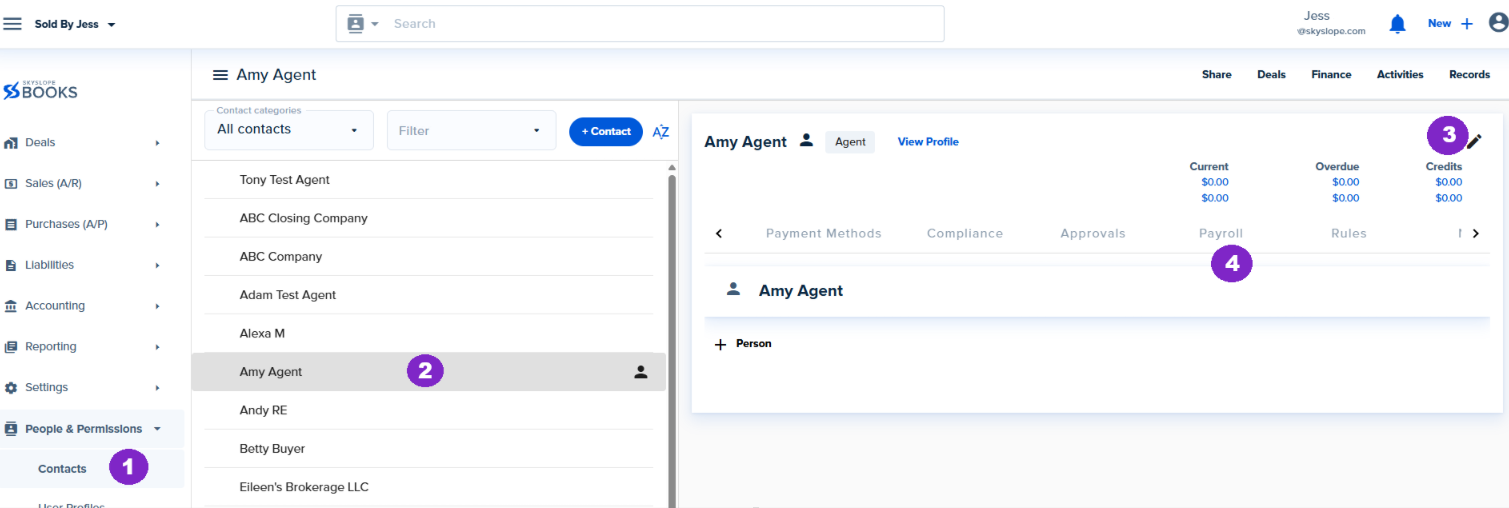
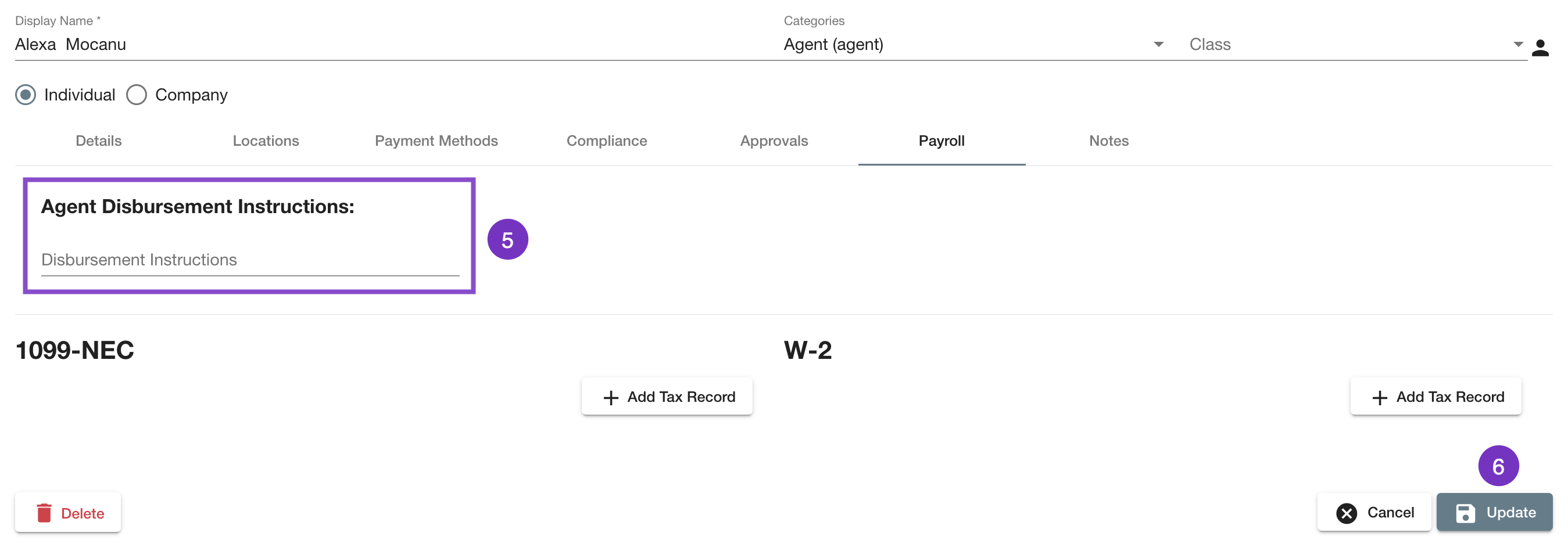
3. Enter your disbursement instructions here, and then click Update.
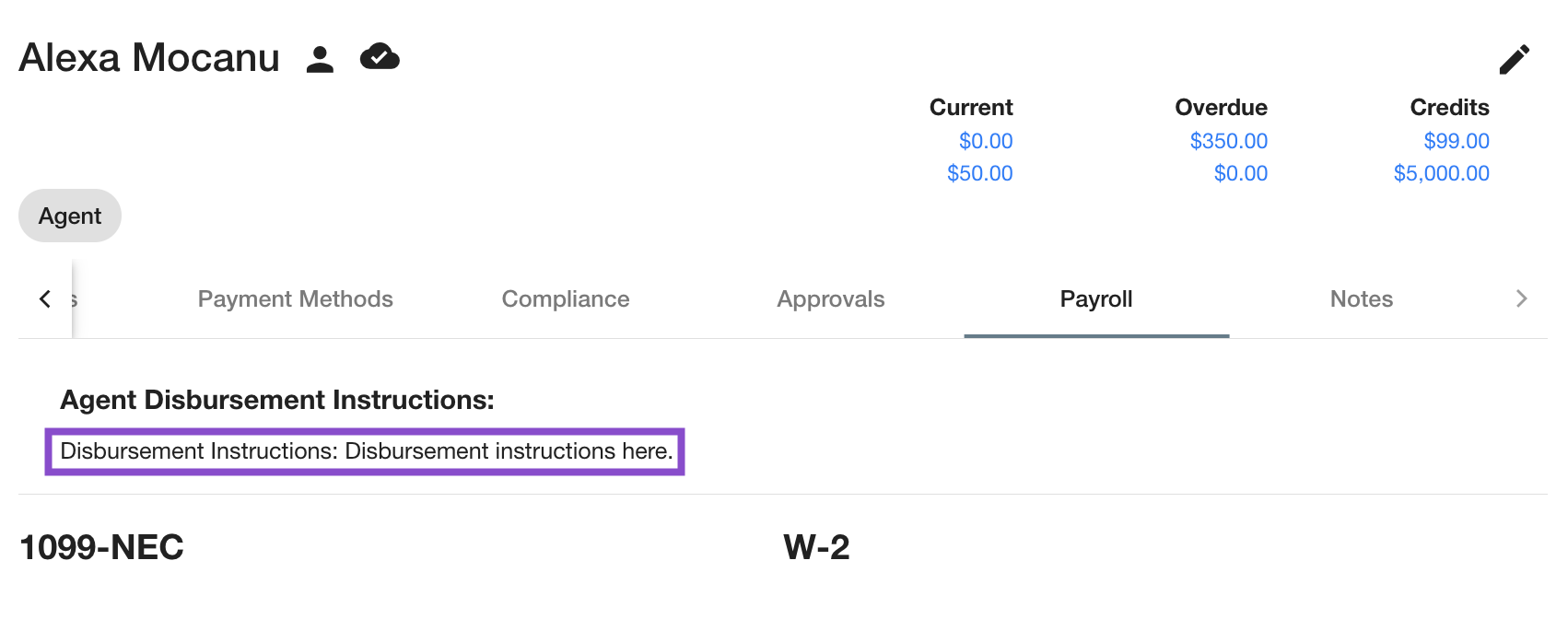
4. You will now see the disbursement instructions under Payment Methods when you view the Contact.
Compliance
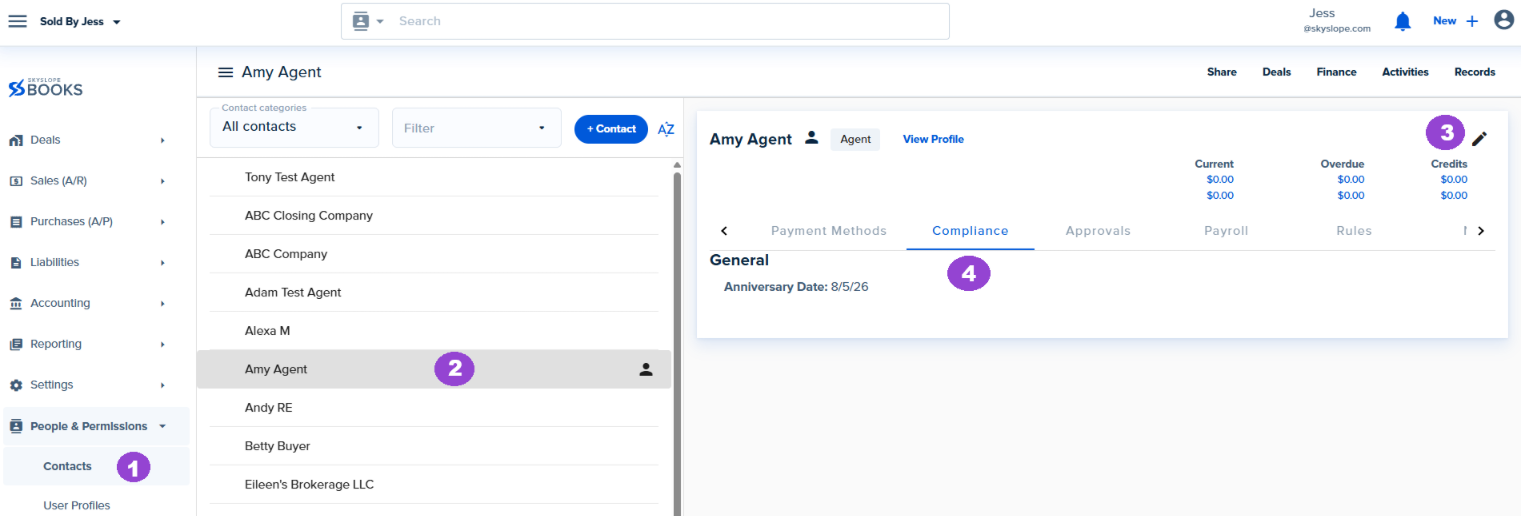
1. In the left menu, navigate to the Contacts section.
2. Locate and click on the contact. Then click the Pencil icon to edit. Then navigate to the Compliance tab.
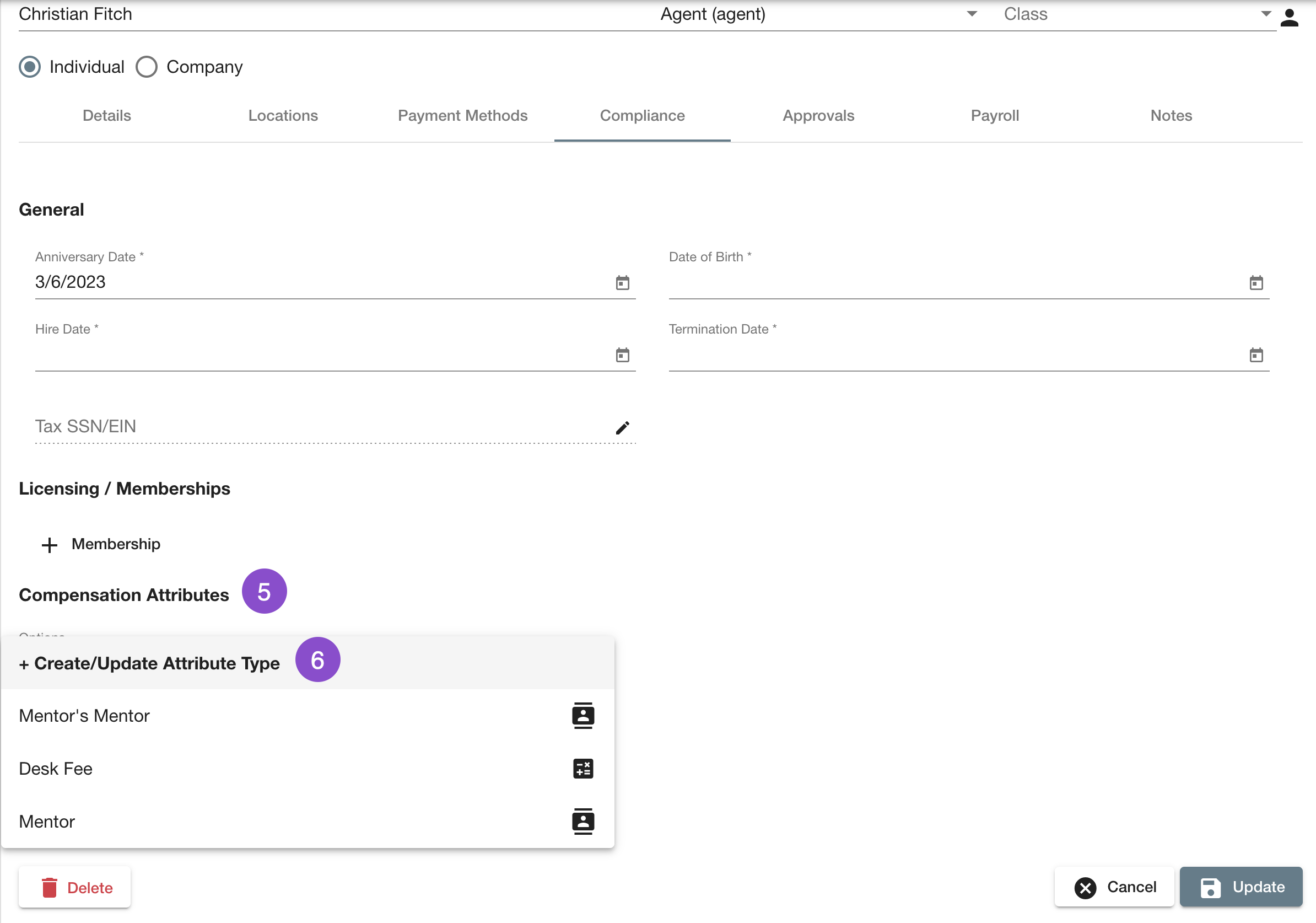
3. Scroll down to Compensation Attributes. From the drop-down menu, select Create/Update Attribute Type.
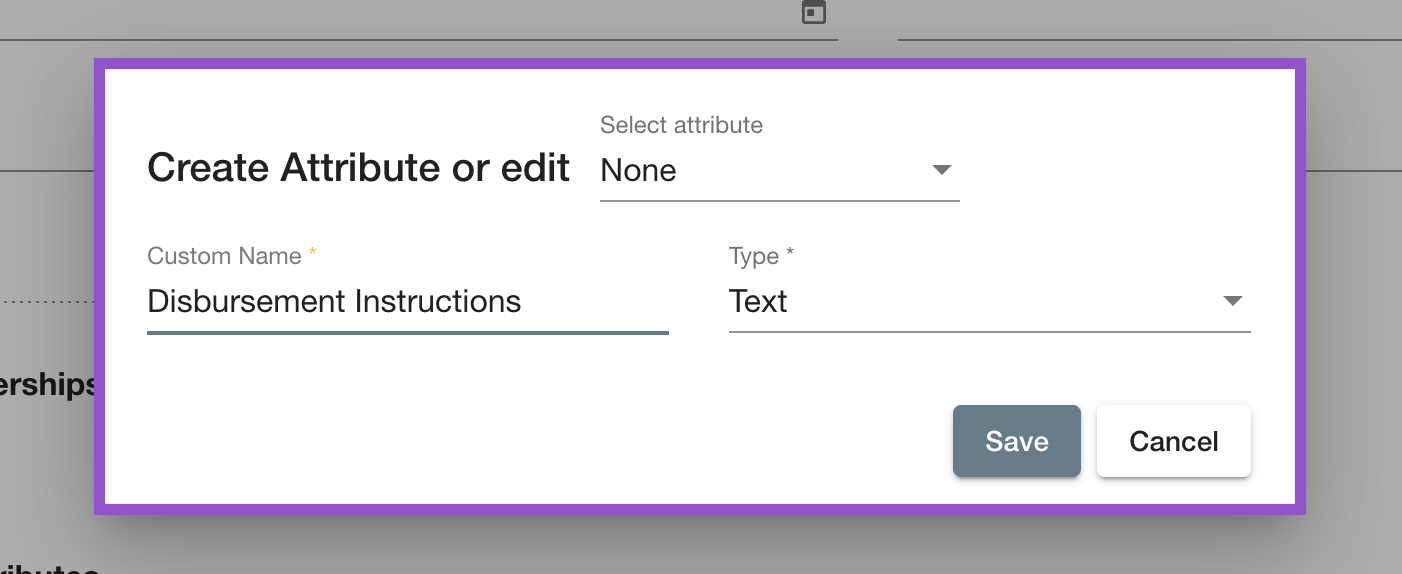
4. Select Text as the type of compensation attributes, and enter your disbursement instructions.
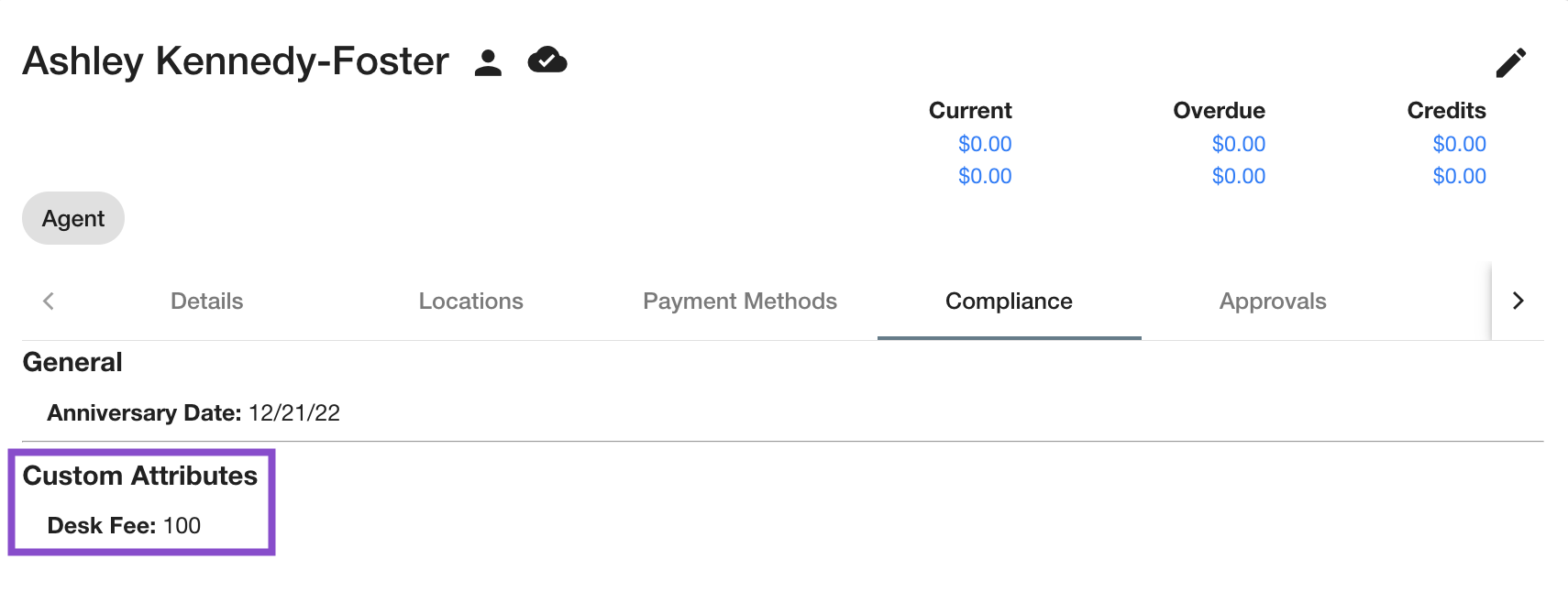
5. Update the contact. You should see these under the Compliance tab when you view the Contact.
6. Now, when you go to Rules and set disbursement instructions there, you will have two options:
- Type in the disbursement instructions, OR
- Click the Compensation Attributes icon > Select the text compensation attributes you set for that Contact on their contact card > You will see these on the Disbursement PDF.
Deals Page
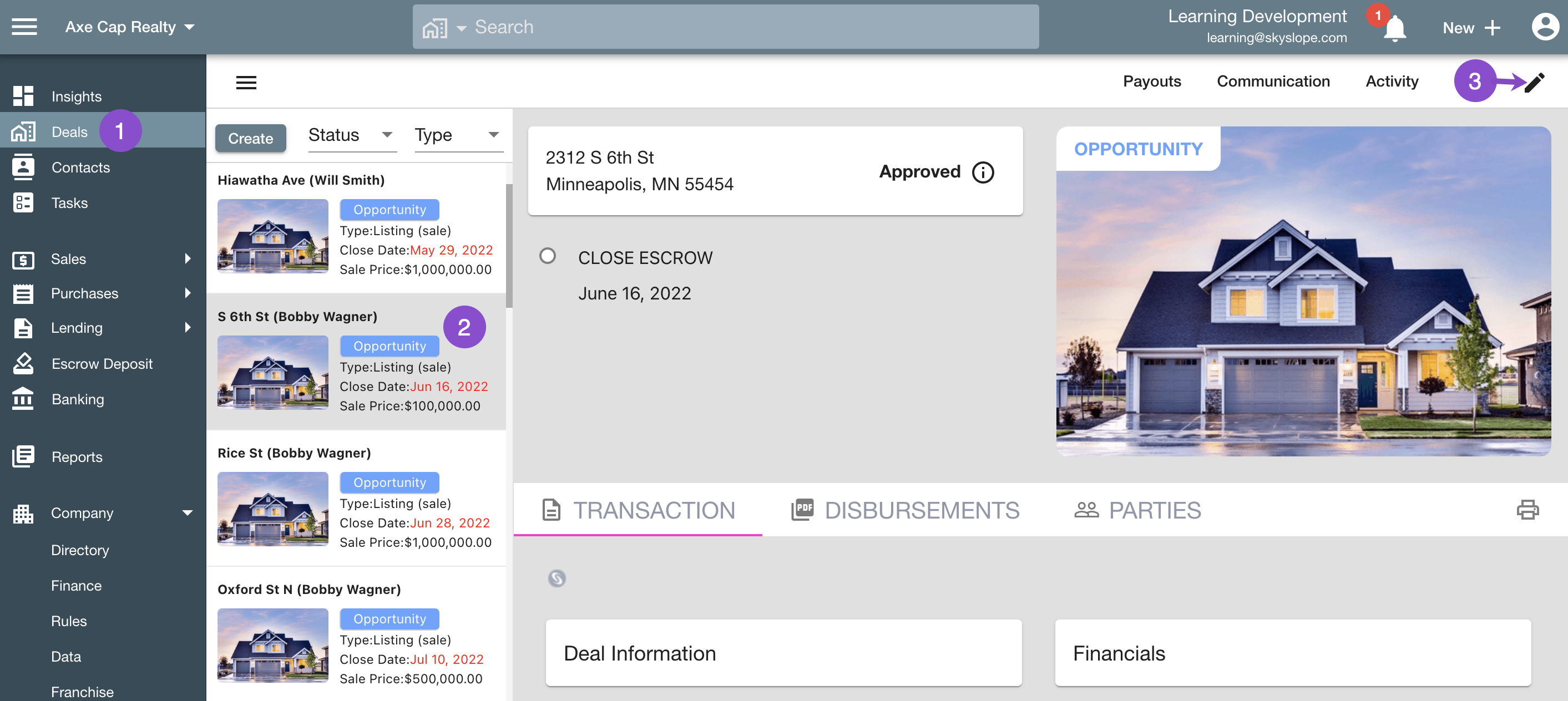
1. In the left menu, navigate to the Deals section.
2. Locate and click on the deal. Then click the Pencil icon to edit.
3. Scroll down to the Disbursement card. Then choose the agent/company. Click that entity's card, and you will see the default disbursement instructions (if there are any).
Click the Lock icon to Override Disbursement Instructions.
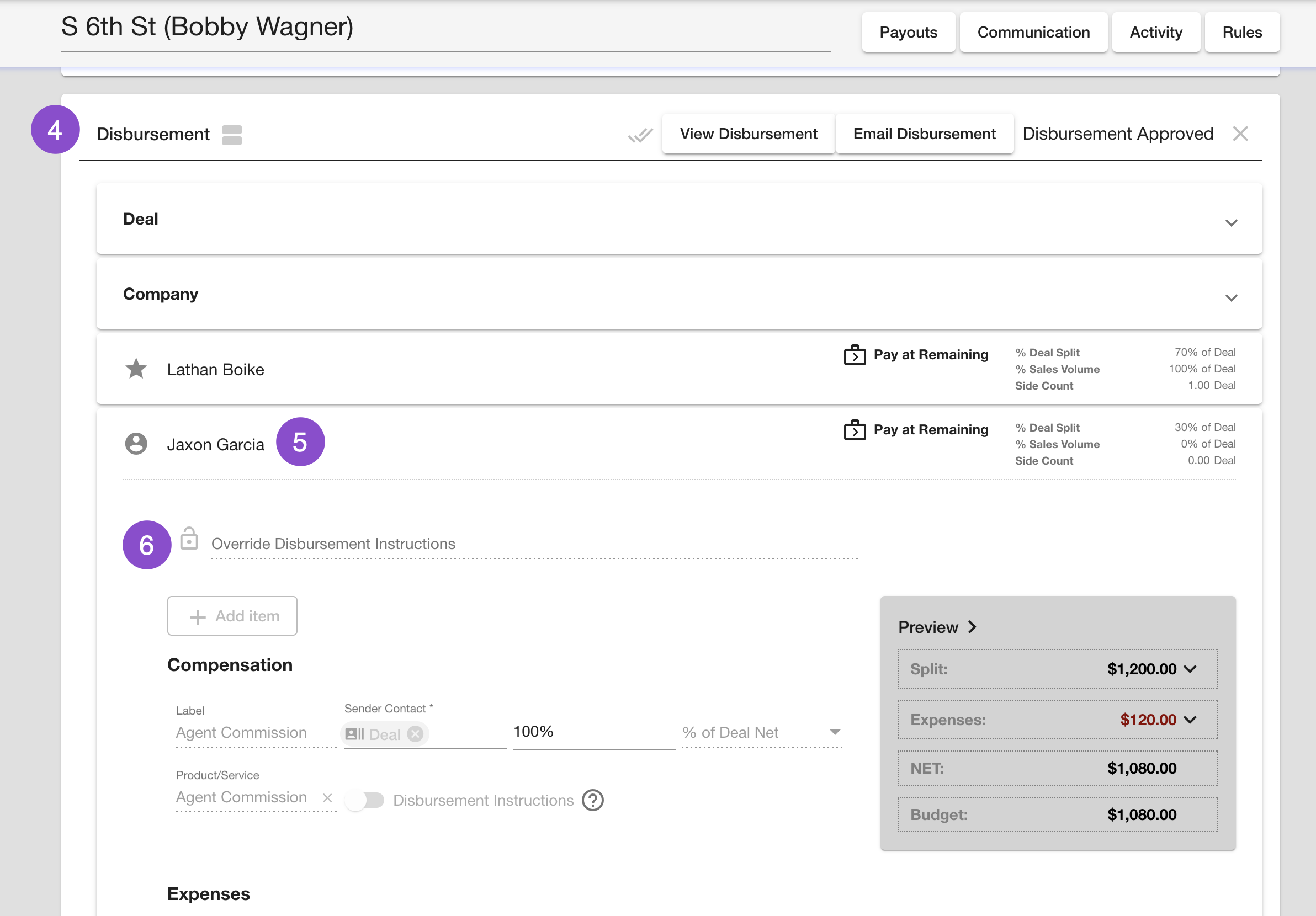
4. Enter your new disbursement instructions, and save the deal.
Rules Page
1. In the left menu, navigate to the Company section. Then select Rules. This will take you to the Rules page.
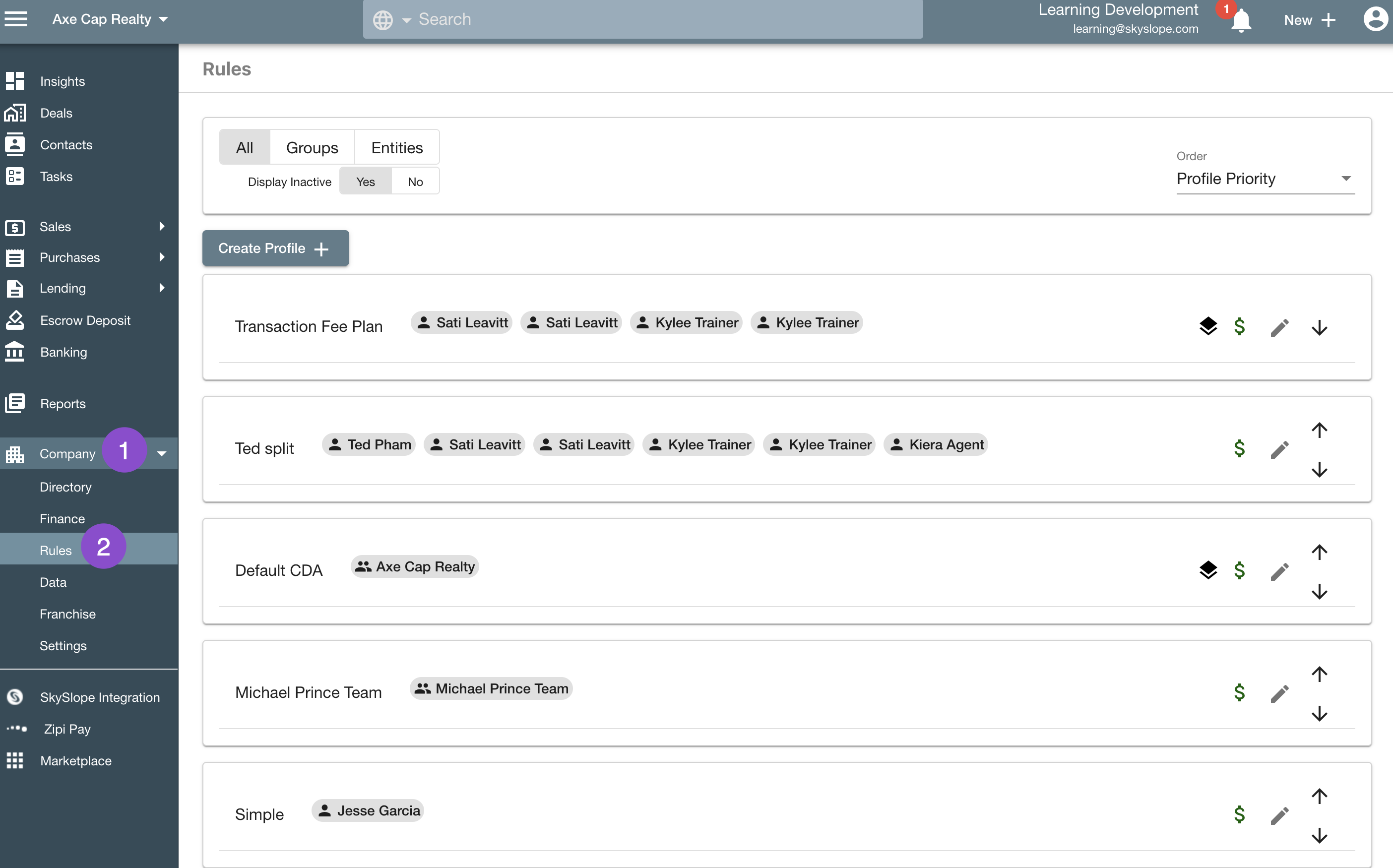
2. Click to select a compensation profile, and choose the element you want to add the disbursement instructions to.
[image]
3. Enable Disbursement Instructions.
[image]
4. Enter your new instructions.
[image]
5. Click Save Changes.
Which instructions are displayed on the Disbursement PDF?
Deals have the highest priority, and Contacts have the lowest.
If you just have the Contact card disbursement instructions, they will be used by default.
[image] [image]
If you have both the Contact card and Deal card disbursement instructions, the deal card instructions will be used.
[image]
be sure to use contact that has the compensation attributes applied > go into a deal for that contact > agent must be paid at closing (not at remaining) for it to work
Was this article helpful?
That’s Great!
Thank you for your feedback
Sorry! We couldn't be helpful
Thank you for your feedback
Feedback sent
We appreciate your effort and will try to fix the article
<\br>